



"JWP was a world-class partner enabling us to meet our commitment to deliver the first truly digital Games across Europe, with flawless delivery across every screen."
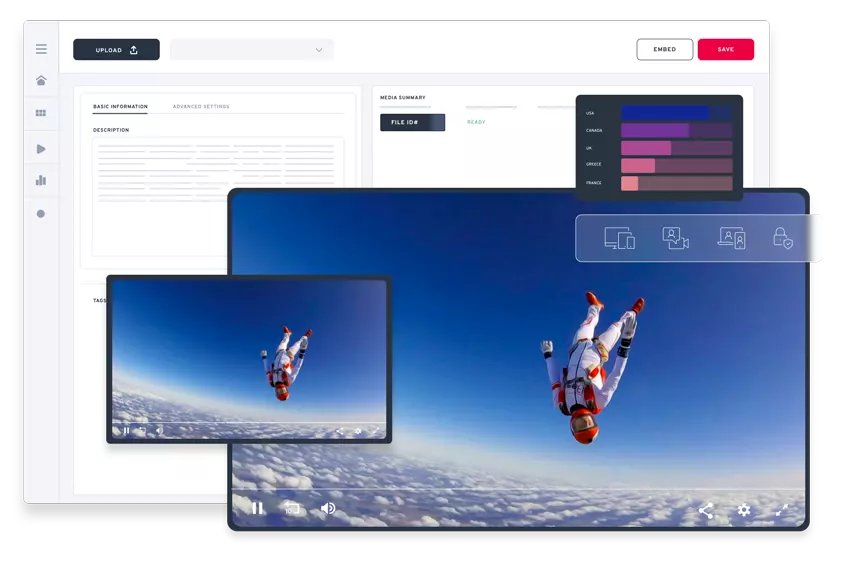
JW Player End-to-End Video Delivery
End-to-End Video Delivery
& Monetization Platform
Enabling video-driven companies to deliver and monetize content using a single unified platform for Live & VOD.
Broadcasters Publishers AdvertisersTrusted by 10,000+ Companies


Purpose-Built for Broadcasters, Publishers,
& Other Video-Driven Businesses
Innovative industry solutions to flawlessly stream video, improve audience engagement, and better monetize video content.

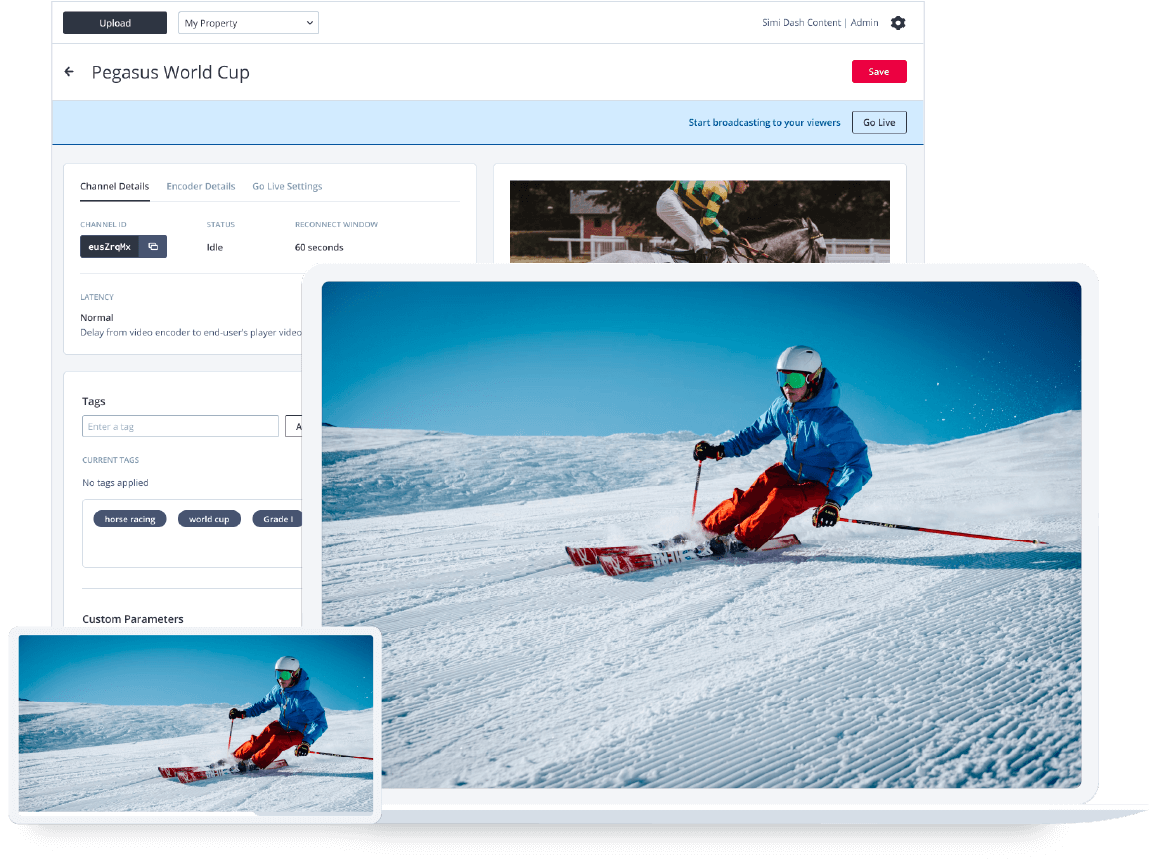
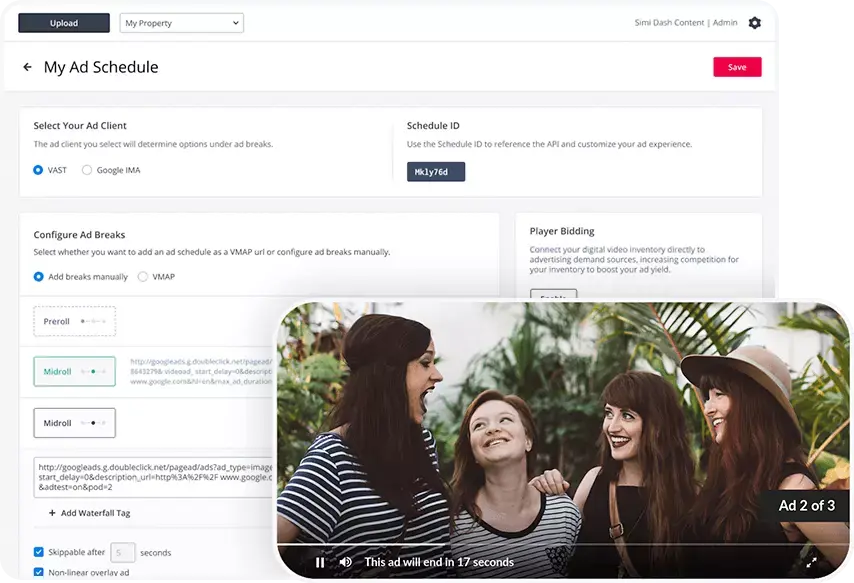
Accelerate Your Video Strategy on a Single Platform
JWP delivers the industry's most robust end-to-end video platform.
Standalone Products for Any Video Use Case

Video Web Player
Video Web Player
The fastest HTML5 video player on the web—so your content and ads render reliably and beautifully on every screen.
Web Player
OTT Video Apps
OTT Video Apps
A tailored end-to-end solution to deliver compelling video experiences across all screens.
Learn more
Live & VOD Streaming
Live & VOD Streaming
24/7 Live, instant live events, and comprehensive catch-up services to connect and engage deeper with global audiences.
Learn more
Studio DRM

Subscriptions

Web App
Demonstrative Results Matter
Growing your audience, getting better engagement and monetizing video content is important to us as it is to you.


"The overarching goal has been to increase the amount of video, the traffic from those videos, and the engagement. In the end, it’s all led to monetization."

"We encode through JWP and that’s been really seamless from the get-go."